Staying connected while exploring Malaysia is one of the easiest ways to ensure your trip runs smoothly. From navigating the busy street food stalls of Penang to hailing a car in Kuala Lumpur or checking train tables on the RapidKL app, mobile data is an essential companion. In this guide, we break down the simple steps to select, buy, and activate a travel eSIM before you board your flight, ensuring you connect instantly on arrival.
Why Choose an eSIM Over a Traditional SIM Card?
Historically, tourists had to queue at airport kiosks after long flights, scan their passports, and manually swap tiny plastic cards, risking losing their primary home SIM. Virtual eSIMs have changed the game completely:
- Dual-Line Mode: You can keep your primary phone number active to receive free bank OTP alerts and security messages while routing all expensive data usage through the local travel eSIM.
- No Physical Swaps: Everything is done digitally. No paper clips, no tiny plastic cards, and zero risk of physical loss.
- Airport Convenience: Avoid the premium airport markup fees and crowded counter lines by setting up your profile in your own living room.
Step 1: Check Device Compatibility
Before purchasing any profile, you must verify your hardware supports eUICC standards. Generally, flagship smartphones released after 2019 (such as iPhone XR/11/12/13/14/15/16, Samsung Galaxy S20/S21/S22/S23/S24, and Google Pixel 3a/4/5/6/7/8/9) are compatible. You must also ensure your device is carrier-unlocked; contracted phones locked to home carriers will reject foreign eSIM configurations.
"To quickly verify compatibility on an iPhone, navigate to Settings > General > About. Look for 'Carrier Lock'—it should state 'No SIM restrictions'. If you see that, you're ready to proceed!"
Step 2: Choose the Right Profile Type
Travel profiles generally fall into two categories:
1. Data-Only eSIMs
These plans deliver cheap internet data but do not assign a local Malaysian telephone number (+60). They are perfect for modern messaging apps (WhatsApp, Telegram, Signal) and standard internet navigation, requiring no complex passport scans.
2. Local Operator Prepaid eSIMs
These profiles behave like native physical SIM cards, including a local telephone number (+60) for making local calls. In Malaysia, local law requires identity registration (passport scan) for any active local telephone number, so you will need to upload your details during purchase.
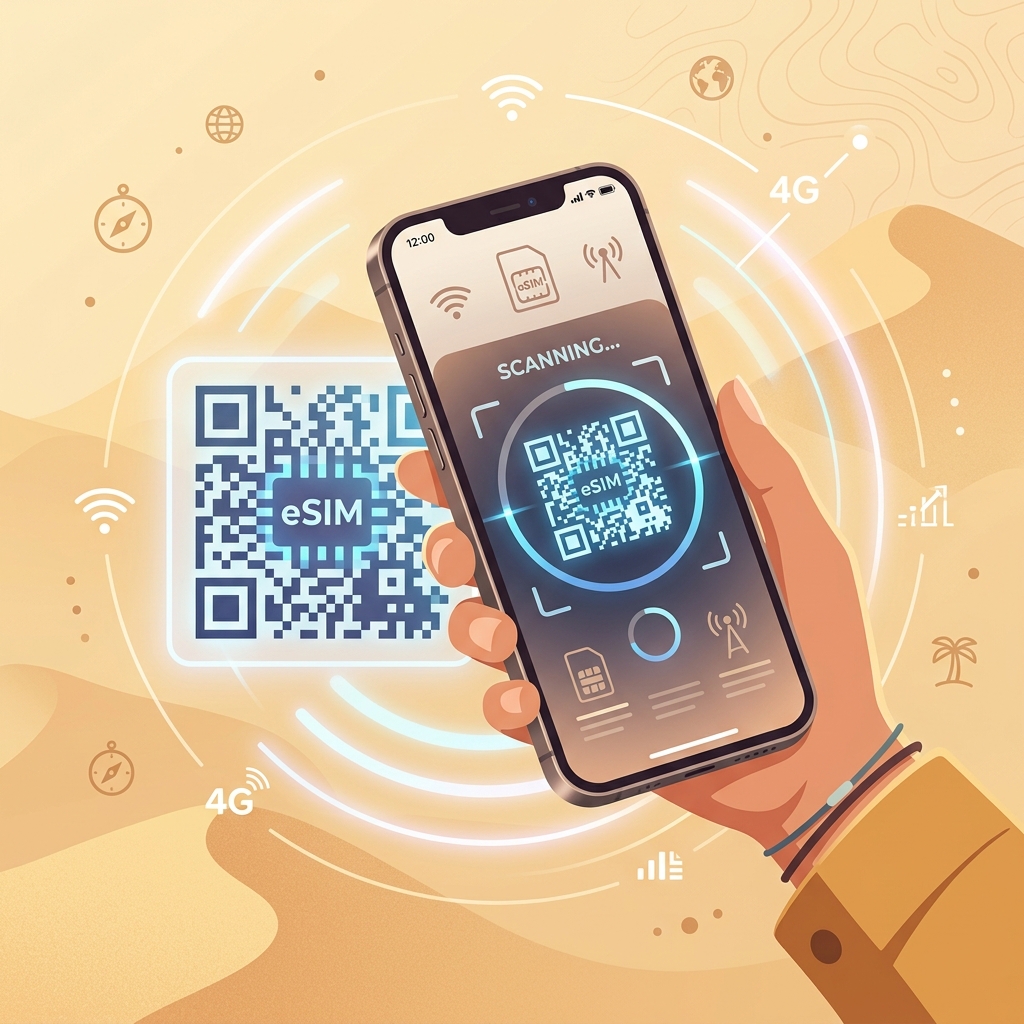
Step 3: Dual-SIM Hardware Orchestration & DSDS Settings
Modern mobile phones manage two connections simultaneously using a technology called DSDS (Dual SIM Dual Standby). In DSDS mode, both your physical home SIM card and your digital travel eSIM remain registered with their respective cell towers. However, since the phone shares a single radio receiver, only one connection can transit high-bandwidth packet data at a time. Newer premium devices feature DSDA (Dual SIM Dual Active), utilizing two separate transceivers so that receiving a voice call on your primary line does not temporarily suspend the data connection on your travel eSIM.
To avoid roaming charges while keeping both lines active, construct your settings as follows:
- Primary Voice / SMS Line: Set this to your home carrier SIM. This ensures you can receive inbound phone calls and emergency bank OTP messages (which are typically free to receive while roaming globally).
- Primary Cellular Data: Lock this strictly to your newly installed travel eSIM.
- Cellular Data Switching: Ensure this parameter is toggled off. If enabled, your operating system will silently fall back to your home SIM's cellular data stream if the local eSIM signal weakens, immediately triggering expensive roaming billing.
Step 4: Manual Carrier APN & Network Registration
In most instances, scanning an eSIM profile automatically pushes the required cellular credentials to your phone. However, if your phone displays "No Service" or a signal bar with no data icon (such as "LTE" or "5G"), you must perform manual configurations. The most common cause is an empty or incorrect APN (Access Point Name) field.
To fix this, go to your cellular settings, tap on your travel eSIM profile, and locate the APN settings. Enter the carrier-specific APN string provided in your eSIM purchase voucher. In Malaysia, standard configurations use:
| Standard Carrier | APN String | MMSC Address (if required) | IP Protocol Type |
|---|---|---|---|
| CelcomDigi Network | celcomgprs or internet |
Leave Blank | IPv4 / IPv6 |
| Maxis Network | unet or maxis |
Leave Blank | IPv4 Only |
| U Mobile Network | my3g or my4g |
Leave Blank | IPv4 / IPv6 |
Step 5: Diagnostic Matrix for Common eUICC Setup Errors
If you encounter configuration hurdles, reference this diagnostic sheet to identify and solve the underlying technical cause immediately:
| Error Message / Symptom | Underlying Root Cause | Resolution Protocol |
|---|---|---|
| "Profile Already Installed" / "Unable to complete action" | The eUICC security profile was already successfully downloaded in a previous attempt. | Do not scan again. Go to your Cellular/SIM management settings and look for the profile. It will already be present in the inactive list. Toggle it to active. |
| "PDP Authentication Failure" / Signal but no data flow | The phone was unable to establish an IP data tunnel due to mismatched APN or deactivated data roaming settings on the eSIM. | Go to the travel eSIM settings, verify that "Data Roaming" is switched on for this line, and check that the APN exactly matches the APN in Step 4. |
| "Invalid QR Code" / Camera loop during scan | Your smartphone is locked to your home carrier (contract-bound) or does not support global eUICC standards. | Verify device unlock status with your home carrier. If unlocked, type the SM-DP+ server address and Activation Code manually into the cellular entry fields. |
By preparing these settings and referencing this configuration protocol, you can ensure a flawless transition upon arrival. Maintain absolute data segregation on your device, and enjoy secure, low-cost local cellular speeds during your journey across Malaysia.